
Switching guide
Switch from Polylang to Tranzly without losing your translations
Tranzly Pro imports what you translated in Polylang: your languages, your translations and the links between them. Polylang’s data stays untouched, so you can always switch back.
Step by step
Back up your site
A full backup first, as before any big change. Your host or a backup plugin can do it in a click.
Install Tranzly and Tranzly Pro
Install the free Tranzly from WordPress.org, then Tranzly Pro (the import is a Pro feature; the 14-day free trial needs no card).
Switch Polylang off
Deactivate Polylang in Plugins. Do not delete it: its data stays in your database, and Tranzly reads it from there. With both on, their addresses and switchers would fight.
Do a dry run
Open Tranzly, then Settings, then Workflow, and open “Switch from WPML, Polylang or TranslatePress”. Tranzly shows the Polylang languages it found. Press “Dry run”: it walks your content and changes nothing.
Import
Press “Import”. Large sites are imported in small steps, so nothing times out; keep the page open until it says how many languages and translations came across.
Check, then add a language switcher
Open Translation status to see every language. Then place the Language switcher block in your header, or use the menu item, widget or floating button.
Changed your mind? “Undo the import” removes exactly what the import added, and you can switch the old plugin back on.
What really happens
What Tranzly does with your Polylang data
- Your languages are added to Tranzly, with your main language first.
- Every translated page, post, category and tag stays the page it is, and is linked to its original exactly as Polylang linked it.
- The texts you translated in Polylang’s string translations come into Tranzly’s site texts.
- Imported translations are protected: no machine re-translation overwrites them.
- Code that calls Polylang’s functions, such as pll_current_language() and pll_get_post(), keeps working (Tranzly Pro answers them).
We tested this on our demo network: a site with three pages in English, French and German, made with Polylang. After the import each French page kept its address (/fr/notre-torrefaction/) and every page carried the right hreflang links.
The import screen
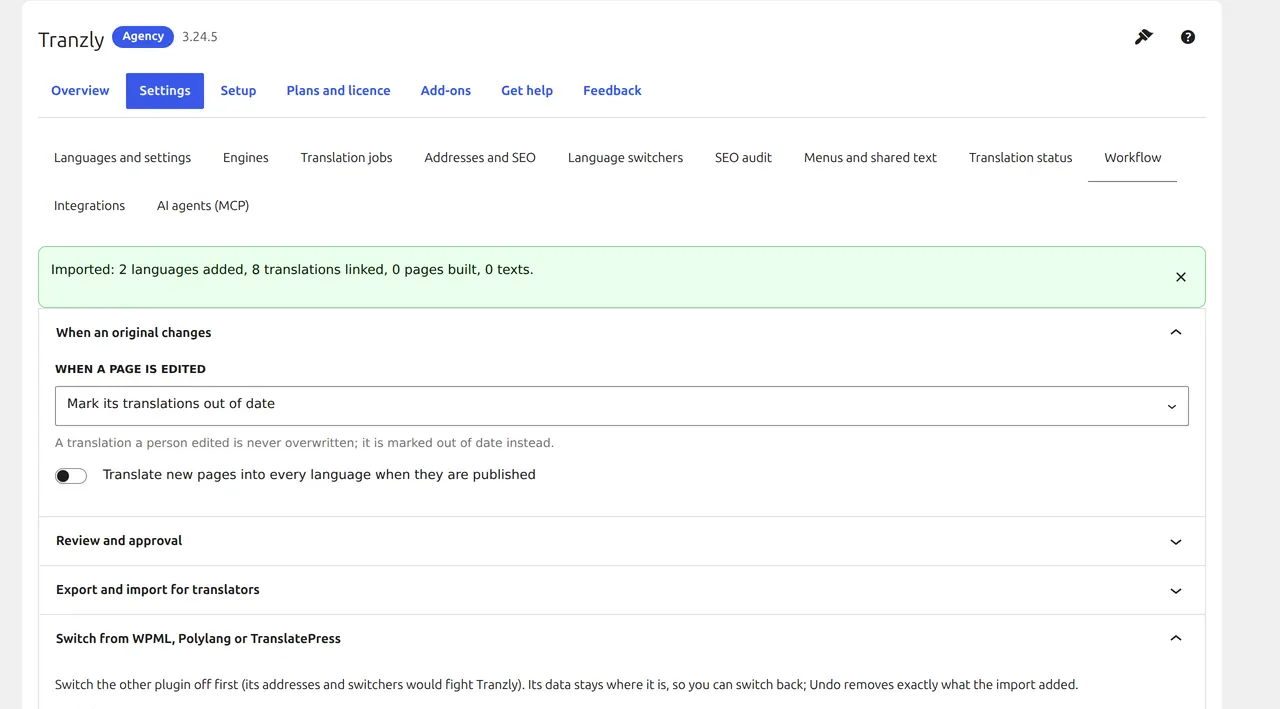
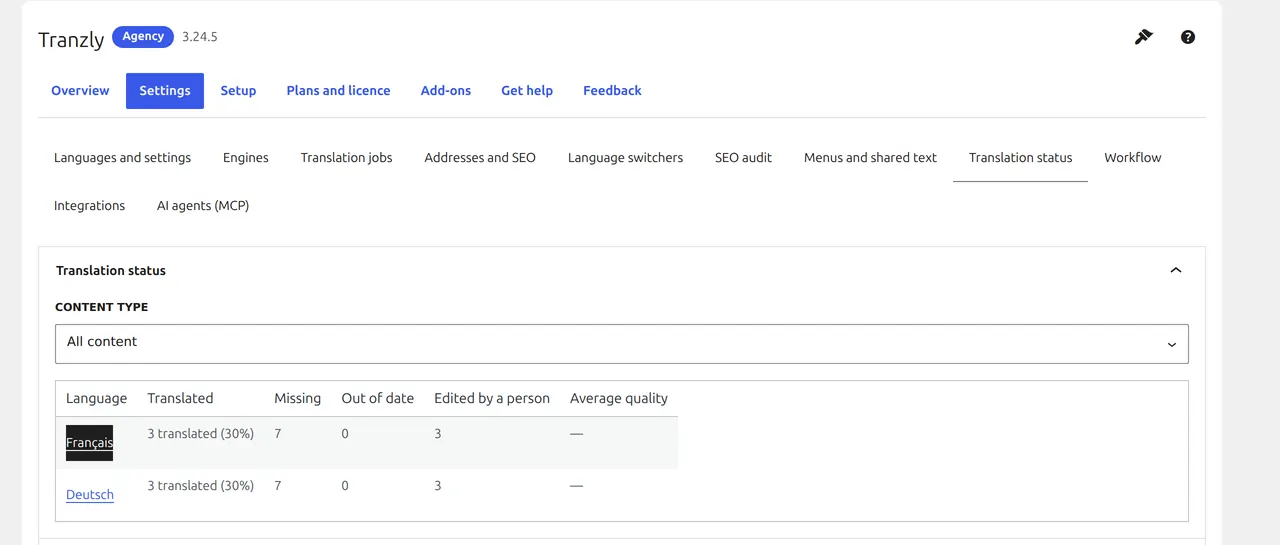
Screens from a real switch on our demo network (from Polylang). The same screen and steps handle WPML and TranslatePress.
Questions people ask
Do my Polylang addresses change?
No, if you keep Tranzly’s folder per language: Polylang and Tranzly both put a language in a folder (/fr/), and the translated pages keep their own addresses.
Will Polylang’s data be deleted?
No. Tranzly only reads it. Polylang’s tables and settings stay as they are until you remove them yourself.
Can I try it before I buy?
Yes. Tranzly Pro has a 14-day free trial with no card, and the dry run shows what would happen without changing anything.
Bring your Polylang translations to Tranzly
Free plugin, unlimited languages, no word limits. The switch is part of Tranzly Pro.